Microsoft Copilot in Word is designed to solve a very real problem many professionals face every day:
“I know what I want to say, but writing it clearly, quickly, and consistently takes time.”
This guide explains how to use Copilot in Word step by step, in simple language, with real-world examples, and with a human-first approach so your documents stay authentic, accurate, and trustworthy.
This is an advanced tutorial, but you don’t need to be an AI expert. If you use Word for reports, documentation, emails, proposals, or learning material, this guide is for you.



Introduction: What Copilot in Word Really Does
Copilot in Word is not a magic “write everything for me” button.
Instead, it acts like:
- A drafting assistant
- A clarity improver
- A time saver
- A thinking partner
It helps you:
- Start from a blank page
- Improve existing text
- Summarize long documents
- Change tone and structure
- Reuse content intelligently
But you stay in control. The best results come when humans lead and Copilot assists.
Prerequisites: What You Need Before You Start
Before using Copilot in Word, make sure you have:
Required Setup
- Microsoft Word (desktop or web)
- Microsoft 365 account with Copilot enabled
- Stable internet connection
Recommended Skills
- Basic Word usage
- Clear idea of what you want to write
You don’t need:
- Prompt-engineering expertise
- Technical AI knowledge
Simple instructions work best.
How Copilot Appears Inside Word
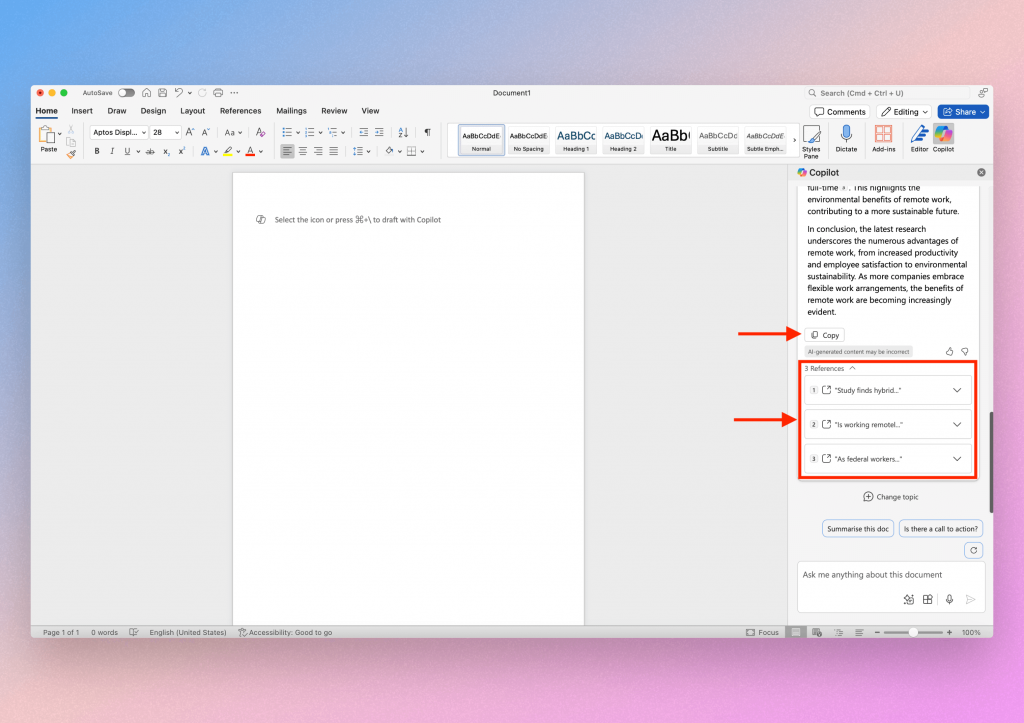
Once enabled, Copilot appears as:
- A Copilot icon in Word
- A side panel or inline prompt box
- Contextual suggestions while editing
Copilot understands:
- The current document
- The selected text
- The structure of your content
This context awareness is what makes it powerful.
Step 1: Starting a Document with Copilot
Starting from a blank page is where many people struggle.
How to Use Copilot to Start Writing
- Open a new Word document
- Click the Copilot icon
- Describe what you want to write
Example Prompt
“Create an outline for a technical tutorial explaining API integration for beginners.”
What Copilot Generates
- A logical structure
- Headings and subheadings
- A starting draft
Human Tip
Don’t publish this draft as-is. Treat it as:
- A starting point
- A thinking accelerator
Refine it with your own knowledge.
Step 2: Expanding Sections Naturally
Once you have an outline, Copilot helps expand sections.
Example Scenario
You wrote a heading:
“Benefits of Automation”
Now you want to expand it.
Prompt Example
“Expand this section with practical examples for business users.”
Copilot will:
- Add explanations
- Include examples
- Maintain professional tone
Best Practice
Always:
- Read the output
- Remove generic phrases
- Add real experience
This keeps content human and credible.
Step 3: Rewriting and Improving Existing Content
One of the most powerful uses of Copilot in Word is rewriting.
Use Cases
- Simplifying complex text
- Making content more formal or casual
- Improving clarity
- Reducing repetition
Example
Select a paragraph → Ask Copilot:
“Rewrite this to be clearer and more concise.”
Real-World Context
This is extremely useful for:
- Documentation
- Training manuals
- Policies
- Knowledge-base articles
You save time without losing meaning.
Step 4: Changing Tone and Style
Different documents require different tones.
Copilot can adapt your writing style easily.
Common Tone Changes
- Professional → Conversational
- Technical → Beginner-friendly
- Long → Short and direct
Example Prompt
“Rewrite this section in a friendly, conversational tone for beginners.”
Important Note
Tone changes should support your audience, not confuse them. Always review before finalizing.
Step 5: Summarizing Long Documents
Copilot is excellent at summarization.
When to Use This
- Long reports
- Meeting notes
- Research documents
- Policy documents
How It Works
- Open the document
- Ask Copilot:“Summarize this document in 5 bullet points.”
Real-World Benefit
- Faster reviews
- Better understanding
- Improved collaboration
This is especially helpful for managers and reviewers.
Step 6: Creating Structured Content (Tables & Lists)
Copilot can convert text into structured formats.
Examples
- Paragraph → Bullet list
- Text → Table
- Notes → Checklist
Prompt Example
“Convert this section into a comparison table.”
This improves:
- Readability
- Visual clarity
- Professional appearance
Step 7: Using Copilot for Editing & Proofreading
Copilot can help with:
- Grammar checks
- Sentence flow
- Reducing ambiguity
How This Is Different from Spell Check
Copilot focuses on:
- Meaning
- Clarity
- Logical flow
Not just spelling.
Human Review Still Matters
Copilot may:
- Miss context
- Over-simplify
- Change intent
Always do a final human pass.
Real-World Example: Writing a Technical Tutorial
Let’s walk through a realistic workflow.
Scenario
You’re writing a step-by-step technical tutorial.
Human-Led Workflow
- You define:
- Topic
- Audience
- Key steps
- Copilot helps:
- Draft sections
- Improve clarity
- Rephrase explanations
- You finalize:
- Accuracy
- Examples
- Tone
Result
- Faster writing
- Higher quality
- Consistent structure
Copilot supports your expertise—it doesn’t replace it.
Common Mistakes to Avoid
❌ Blind Copy-Paste
Always review and edit Copilot output.
❌ Overusing Copilot
Not every sentence needs AI help.
❌ Losing Your Voice
Readers value authenticity.
The best documents feel human, not automated.
Safe Content Automation (Human-First Approach)
You can safely automate parts of writing without sacrificing originality.
A Proven Workflow
- Human creates outline
- Copilot drafts sections
- Human edits deeply
- Human adds examples and insights
Why This Works
- Content remains original
- Quality stays high
- Voice remains consistent
Copilot becomes a productivity tool, not a shortcut.
Who Benefits Most from Copilot in Word?
Copilot is especially useful for:
- Technical writers
- Consultants
- Managers
- Trainers
- Students
- Knowledge workers
If writing is part of your job, Copilot saves hours.
Limitations You Should Know
Copilot:
- Doesn’t know your private intent
- Can sound generic
- Needs guidance
Treat it like a junior assistant—helpful, but not autonomous.
Best Practices for Long Documents
For large documents:
- Work section by section
- Give clear prompts
- Review frequently
- Keep structure clean
This avoids messy, inconsistent output.
Key Takeaways
- Copilot helps you write faster, not lazier
- Best results come from human-led usage
- Ideal for drafting, rewriting, summarizing
- Review and refinement are essential
- Quality comes from collaboration, not automation
Final Thoughts
Using Copilot in Word feels natural once you stop expecting perfection and start using it as a thinking partner.
It shines when:
- You guide it clearly
- You apply your expertise
- You focus on quality
When used this way, Copilot enhances your writing instead of replacing it.
Next Recommended Reading
- How to Enable Microsoft Copilot in Microsoft 365
- Microsoft Copilot Architecture Explained
- Microsoft Copilot Pricing Explained
- Copilot vs ChatGPT: Key Differences
- Best Practices for Prompting Microsoft Copilot